// guide · you
// signing in and devices
Momentary Space has no password. Your colony belongs to a session code, given to you at your first landing, and you can add an email address as a second way back in. This page covers keeping both, signing in on another device, signing out, and deleting your account.
// keep your session code
The session code looks like MS-7K3F-QX9P-2HDM. It signs any browser in as you, so treat it like a password: keep it somewhere safe and don't share it.
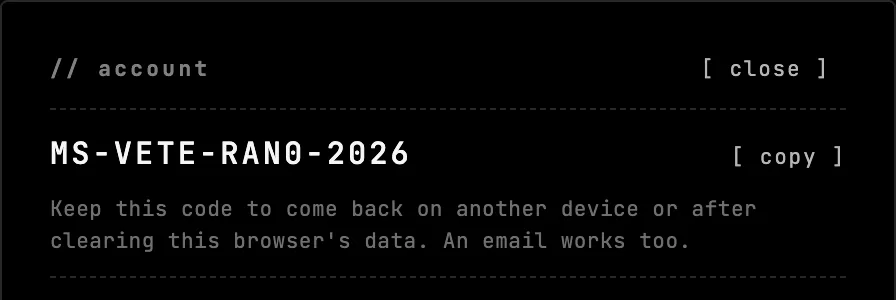
where to find it · [ account ] → Session code
The account shows the code at its top, with [ copy ] beside it. A browser that signed in another way, by email or with a link from another device, can't show the code, and says so in its place.
// sign in with your code
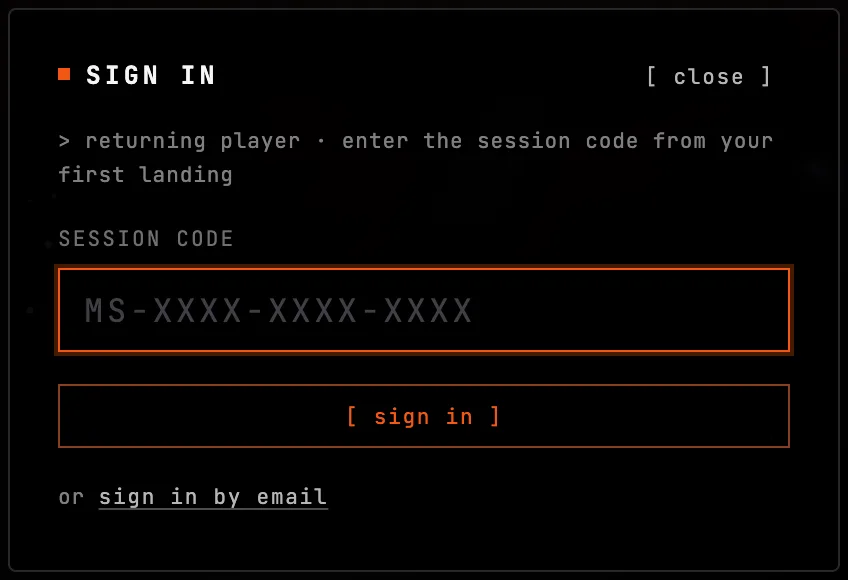
- Open momentary.space and press
returning? sign in. - Type your session code. Letter case, dashes and spaces don't matter.
- Press
[ sign in ]. The colony you last had open opens.
// sign in by email
Once you have added an email address to your colony, you can sign in with it instead of the code. To add one, open [ account ], press [ all settings ], type the address and press [ send code ], then type the code from the email and press [ verify ]. Emails and notifications covers what the colony can send you once it is verified.
To sign in with it:
- On the homepage, press
returning? sign in, thenor sign in by email. - Type your address and press
[ send code ]. - Type the code from the email and press
[ sign in ], or follow the email's[ sign in ]link.
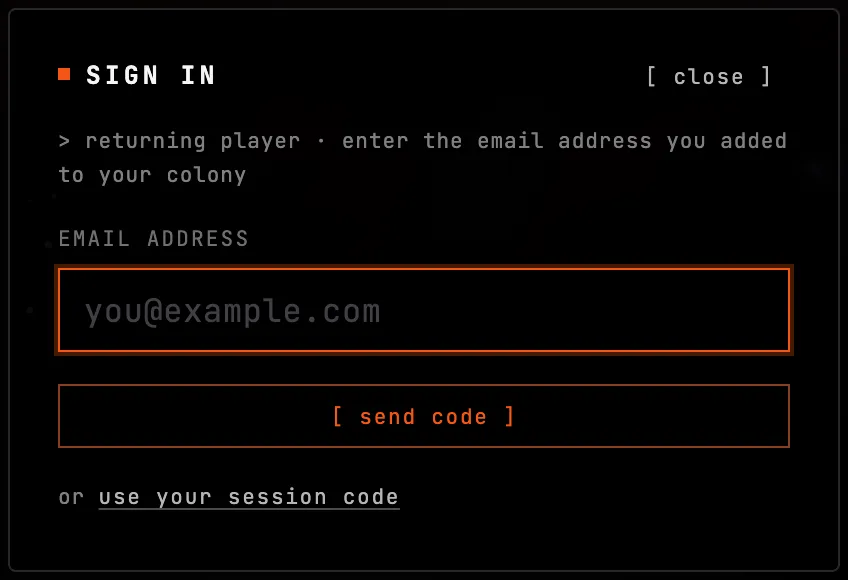
The code and the link work once, for 15 minutes. The dialog moves on to the code step for any address, so it never tells anyone whether an address has a colony.
// continue on another device
To carry on from a phone or another computer without typing the code, let the device you're on make a sign-in link.
- On the device that is signed in, open
[ account ], press[ all settings ], then press[ show sign-in link ]. - Scan the code with the other device's camera, or copy the link and open it there.
- On the other device, press
[ continue ]. It signs in and opens your colony.
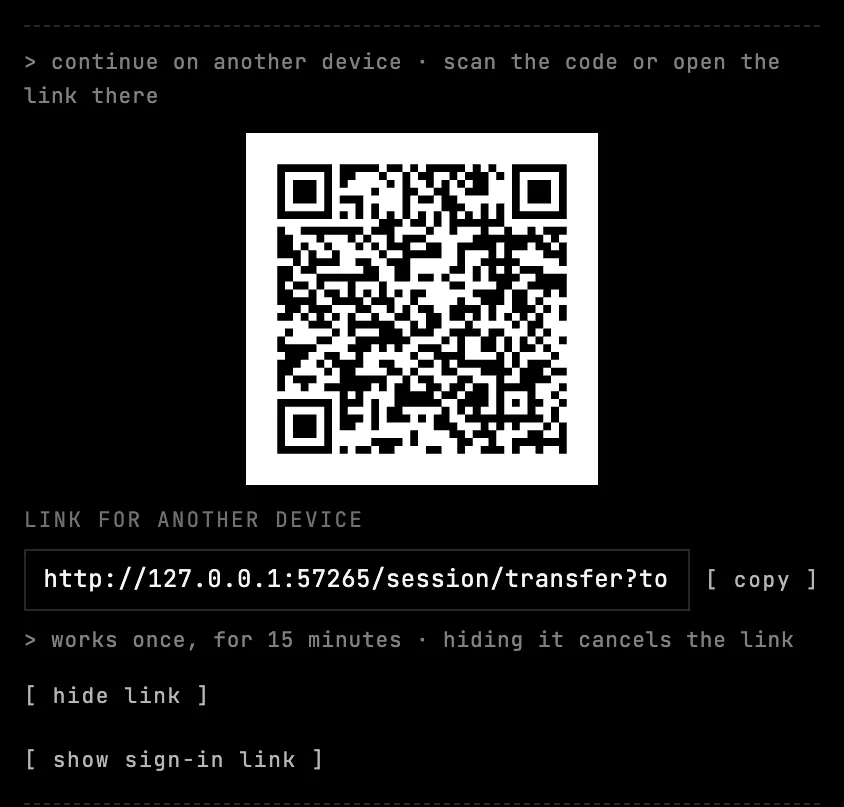
The link works once, for 15 minutes. [ hide link ] cancels it at once, and pressing [ show sign-in link ] again replaces it with a new one.
// sign out
[ sign out ] sits near the end of [ account ], above [ all settings ]. Above it, the account reminds you what you'll need to get back in: your session code, or your email once you have verified one. Signing out leaves your colonies running, and signs out only the browser you're in.
// delete your account
Deleting your account removes every colony you hold, with its research and relics, your email address and your devices. It can't be undone.
- Open
[ account ], press[ all settings ], then press[ delete account ]at the very end. - Type
deletein the field. - Press
[ delete forever ].
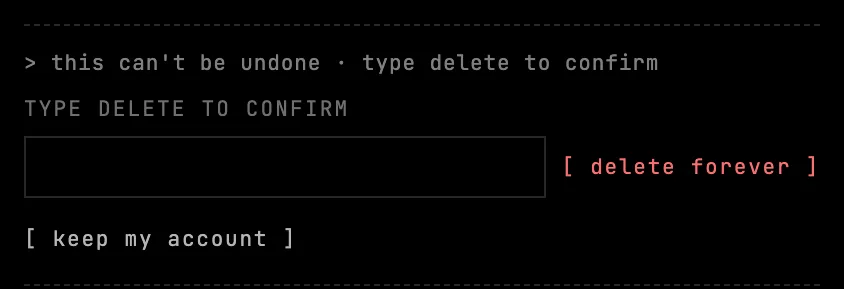
[ keep my account ] backs out without changing anything. Once deleted, every device is signed out at once, and your session code, email and any sign-in link stop working.