// guide · you
// pace, text size and sound
A few settings change how the game feels rather than what the colony does. The pace belongs to you and holds in every colony and on every device. The text size, the sound and keeping the screen awake belong to the device you set them on, so a phone and a computer can each have their own.
// choose a pace
The pace decides how much happens around the colony from Level 5: how often the crew notices something to follow, how long it waits for you, how strong the weather is and how big the rewards are.
where to find it · [ account ] → Pace
calmis the default, and the game as it has always been. Leads and offers wait for as long as you take, bad weather is mild and short, and nothing asks you to take a risk.livelybrings more: leads that go cold after a day, weather with more bite and bigger finds.boldbrings the most: stakes worth taking, weather that bites and visitors that don't stay long. You will miss things, and that is part of it.
Pick one and press [ save ]. The change takes hold at the start of the colony's next half-hour window, and the answer beside the button says when, such as saved · lively from 14:30. Anything already offered keeps the terms it was offered with.
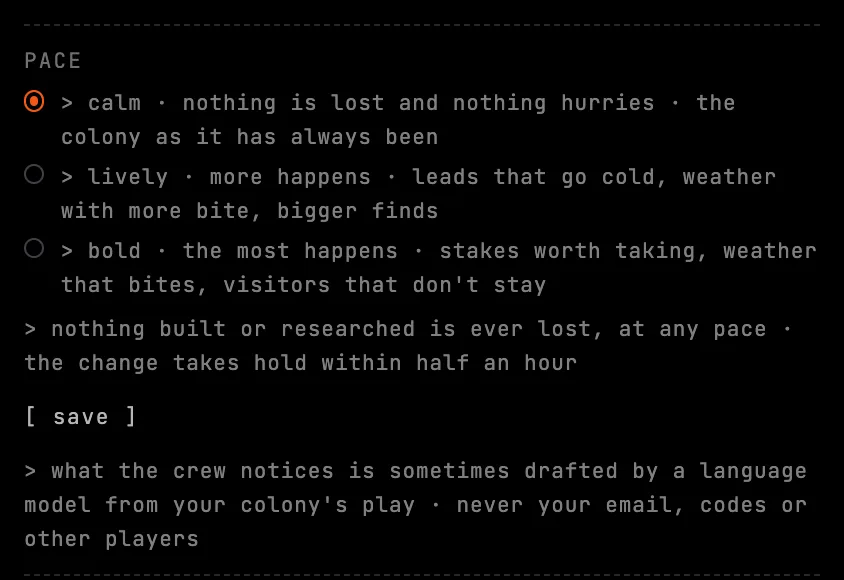
At every pace, nothing built or researched is ever lost, and there is no way to fail. The pace changes no cost, build or research time, production rate, storage cap or level condition. A livelier pace can damage a building for longer, and in bold a little more, but the crew always mends it by itself (Weather and damage covers repairs). The only resources it can ever take are a stake you choose to make (see Leads and visitors).
In lively and bold, some of the settlers the shuttle sets down in a colony with no Quarters and no commons go home again after a few days. They are never lost: see Settlers and the shuttle.
// make the text larger
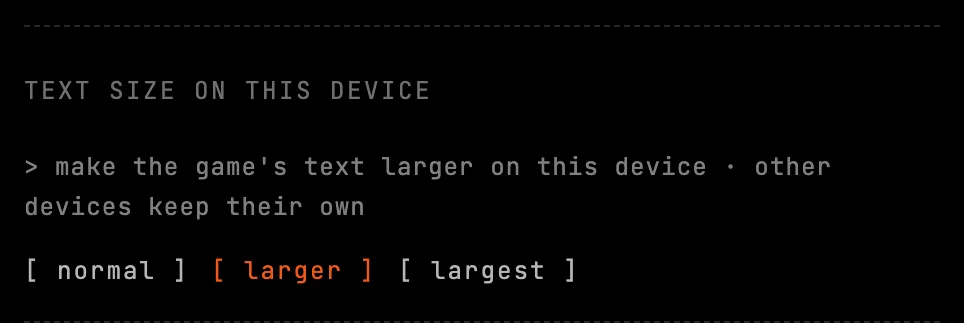
where to find it · [ account ] → Text size on this device
Choose [ larger ] or [ largest ] to scale the game's text and its layout together, or [ normal ] to go back. The change is immediate and holds on every page of the game in this browser, the homepage included. Drawings such as the planet's pixel art and the landing scenes keep their size.
// set the sound
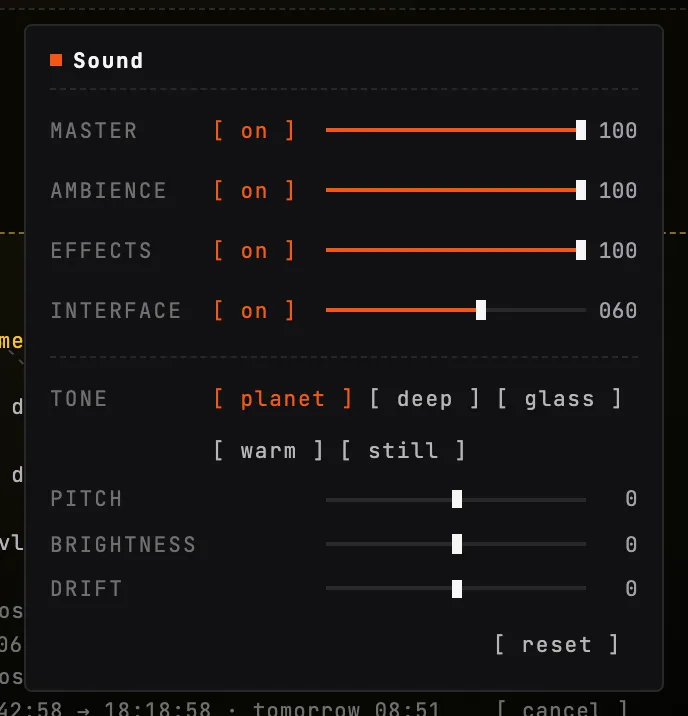
The game plays a soft drone tuned to your planet, an ambience that follows what the colony is doing, effects when something finishes, and quiet clicks for the interface. The sound starts with your first press, tap or key on the page.
On the colony, press the small speaker at the end of the opening row. On the homepage, press [ sound: on ] in the bottom corner. The panel has a switch and a volume for each of four channels:
Masterturns all of it on or off.Ambienceis the colony's background: its machines, research, weather and blooms.Effectsare the cues for builds, finds, levels and deliveries.Interfaceis the soft press of buttons, tabs and dialogs.
// change the tone
Under the channels, Tone changes the drone's character while keeping it your planet's own: [ planet ] is the drone as it was first tuned, [ deep ] is lower and slower, [ glass ] higher and brighter, [ warm ] softer and gently beating, and [ still ] the quietest and most spare.
Three sliders fine-tune it from there. Pitch moves the drone up or down by semitones, Brightness opens or closes its filter, and Drift speeds up or slows down how it breathes and moves. [ reset ] returns to [ planet ] with every slider at the middle.
Every change glides in over half a second, and the browser keeps your choice, so each device can sound different.
// keep the screen awake
In the installed app, the account offers Screen on this device. Press [ keep awake ] to keep the screen on while the colony is open, which is handy for watching a phone on a stand, and [ let it sleep ] to stop. The screen sleeps as usual on every other page. If the device refuses, for example in low power mode, the account says so.
The part doesn't show in a browser tab. Installing the app explains how to install the game.