// guide · you
// installing the app
Momentary Space installs from the browser as an app, with its own icon and window and no address bar. There is nothing to download from a store. Installing it is how an iPhone or iPad gets notifications from the colony, and it lets the account keep the screen awake while the colony is open.
// on an iPhone or iPad
- Open momentary.space in Safari.
- Press the Share button. On recent versions of iOS it sits in the menu behind the
⋯button. - Choose
Add to Home Screen, check that the name readsMomentary, and pressAdd.
The app opens from its icon on the home screen, full screen, with space running under the status bar.
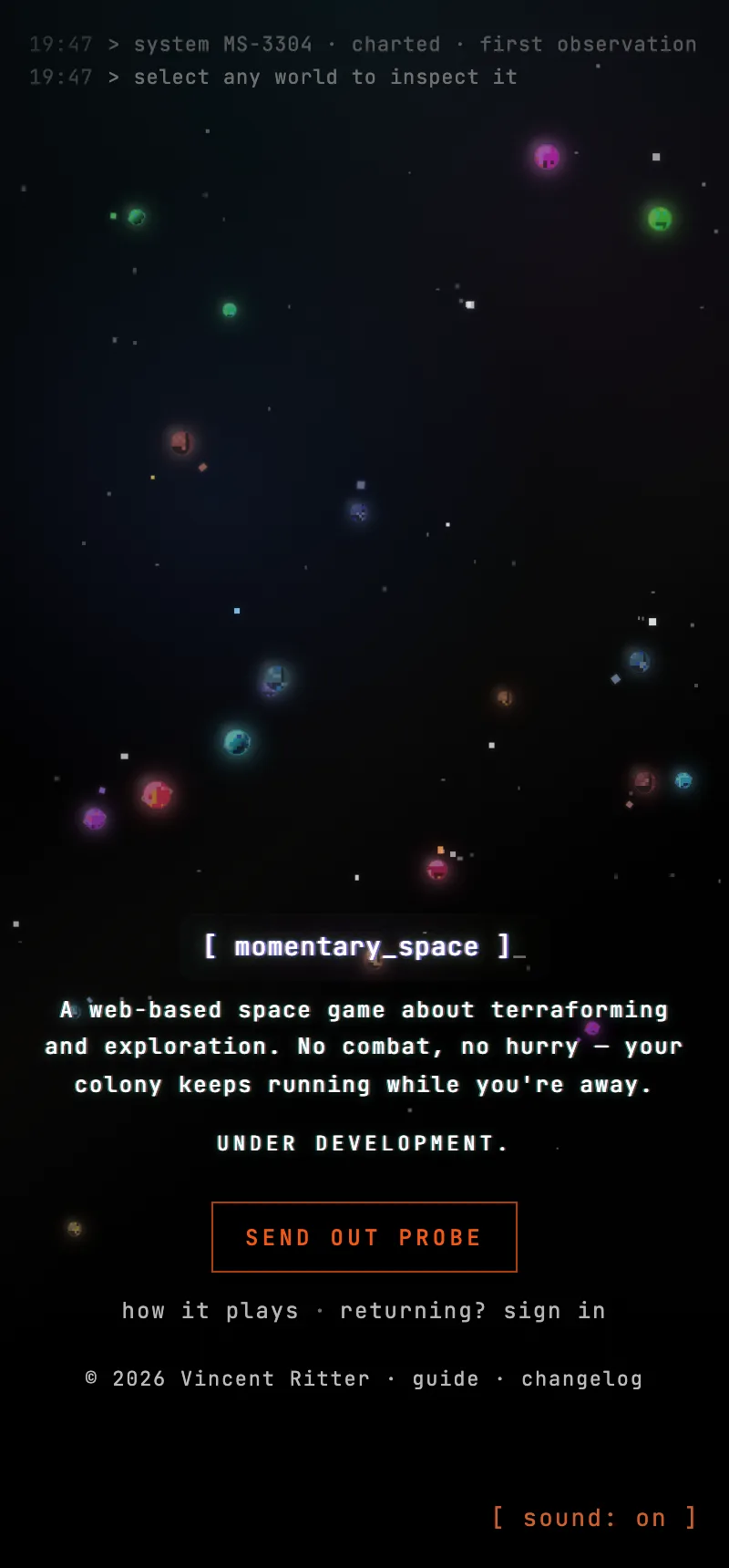
// on Android or a computer
In Chrome or Brave, on Android or on a computer:
- Open momentary.space.
- Open the browser's menu and choose its install item. Depending on the browser and its version, it reads
Install app,Add to Home screenorInstall page as app, sometimes underCast, save and share. On a computer, an install button at the right-hand end of the address bar does the same. - Confirm with
Install.
On a Mac, Safari can do the same with File › Add to Dock.
// sign in inside the app
An app installed on an iPhone or iPad keeps its own sign-in, apart from Safari's, so it opens signed out even if Safari is signed in. Other browsers usually share the sign-in with the app, but if yours opens signed out, sign in the same way.
- Press
returning? sign inon the homepage. - Sign in with your session code, or press
or sign in by emailand use your email address.
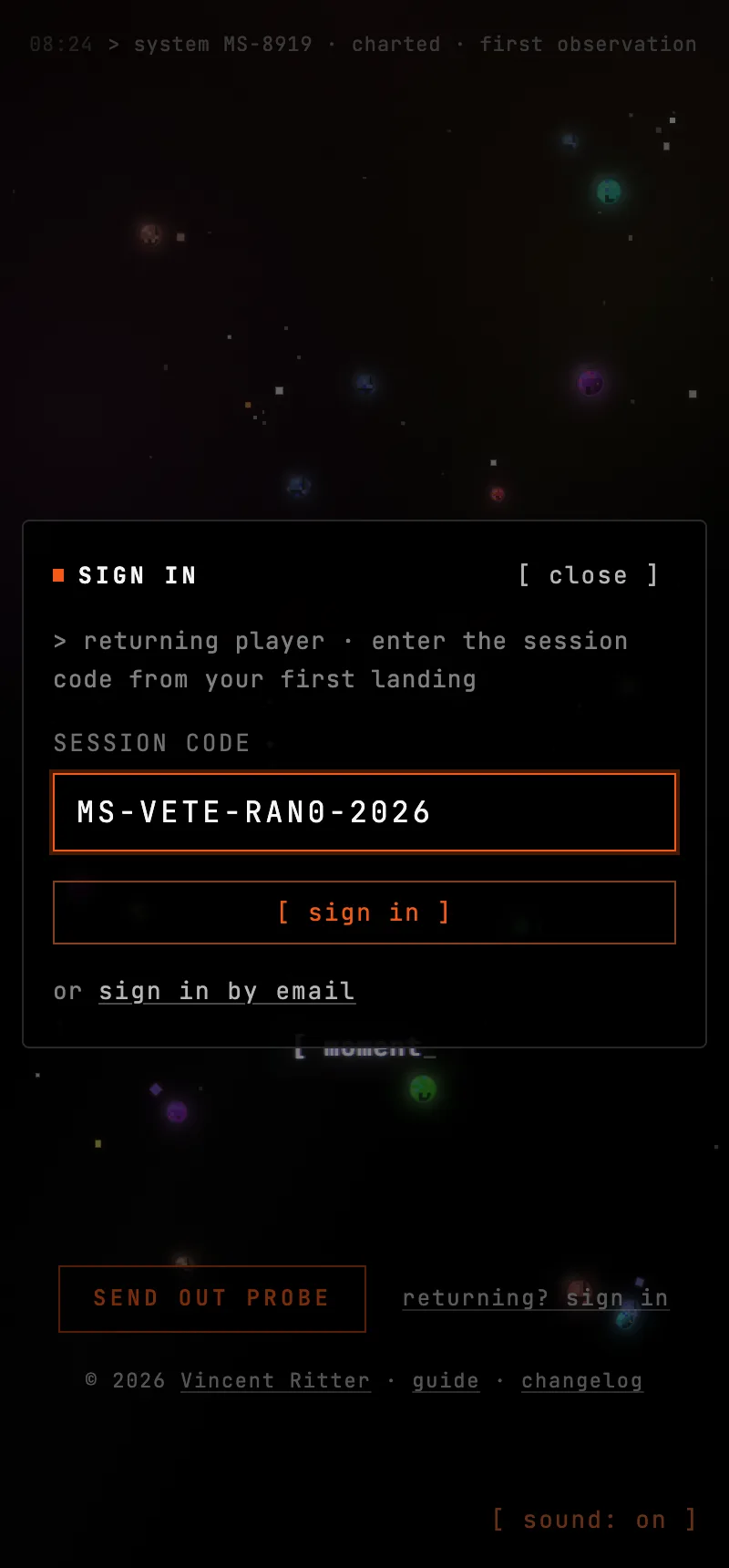
You can also sign in without typing anything: on a device that is already signed in, open [ account ], press [ all settings ], then press [ show sign-in link ] and open the link in the app. Signing in and devices has the details.
// once it is installed
The app is the same game as the website, always up to date. When a new version lands, a line at the bottom of the screen offers [ reload ].
- Turn on notifications for the device under
[ account ]→[ all settings ], as Emails and notifications describes. - Keep the screen awake while the colony is open, under
Screen on this devicein the account. - On an iPhone or iPad, set the text size and the sound again if you changed them in Safari: the app keeps its own.
When the app comes back to the screen after a while away, the colony catches up at once, and after ten minutes or more it opens the card that lists what happened meanwhile. Without a connection the app shows a quiet no signal page, and reloads by itself once the connection is back.