// guide · you
// emails and notifications
The colony keeps working while you're away, and it can tell you when something worth coming back for has happened: by email, as a notification on a device, or both. Nothing is sent until you choose it, and every email can turn itself off in one click.
// add an email address
Emails need a verified address. You can add one on the landing card after your first landing, or later in the settings.
- Open
[ account ]and press[ all settings ], then type your address and press[ send code ]. - Type the code from the email and press
[ verify ], or follow the link in the email in the same browser.
Once verified, the address also signs you in from anywhere (see Signing in and devices). [ change ] beside it sends a code to a new address, and keeps the old one until the new one is verified. [ remove email ], under [ change ], stops every email.
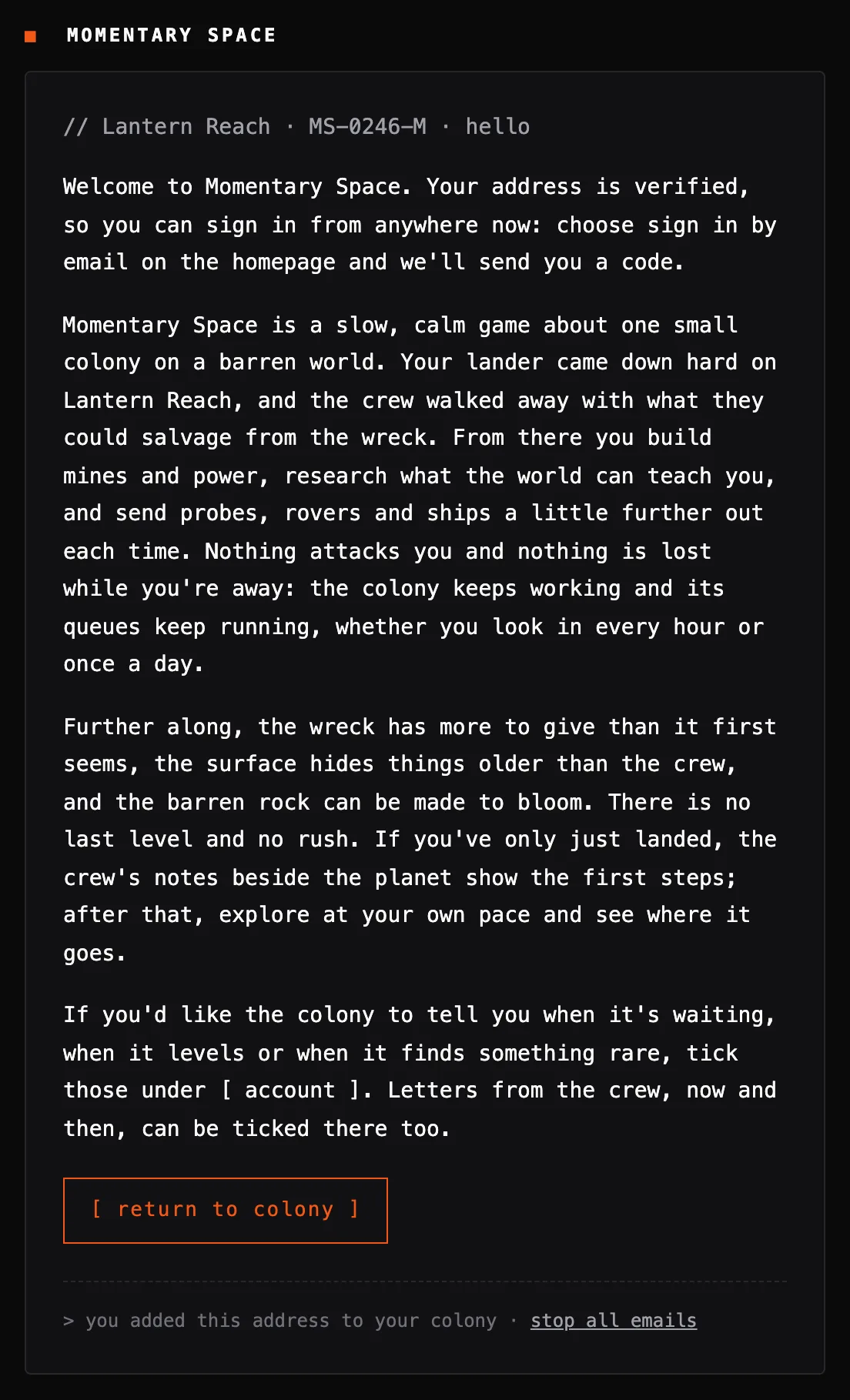
The first time you verify an address, the crew writes once to say hello, with a short note on how the game works.
// choose your emails
where to find it · [ account ] → [ all settings ] → Emails from your colony
Under a verified address, tick what the colony may write about:
> tell me when my colony is waiting: everything you started, in every colony, has finished and stayed idle for half an hour.> tell me when my colony reaches a level.> tell me about rare finds: a relic coming home, a region or world blooming, a star system greening, a capsule coming down, a lead followed to its end.> letters from the crew, now and then: a letter when the home colony reaches certain levels, and one if you haven't looked in for a week.
Then press [ save ], which says what you chose beside it. Right after you verify an address, the first two are ticked as a suggestion, but nothing is sent until you save.
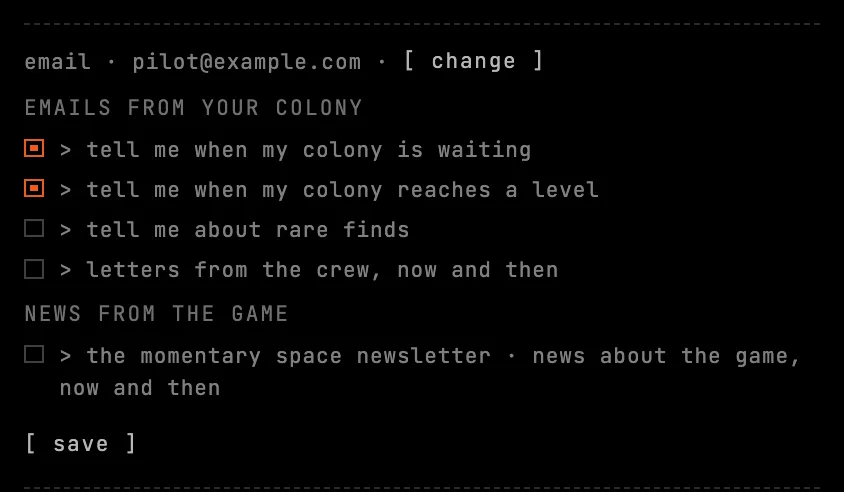
Under News from the game, the newsletter is a separate tick for news about the game itself. It is never ticked for you.
// what an email looks like
The colony gathers what happened into one short letter rather than writing about each thing on its own. It lists one line for each, oldest first, and [ return to colony ] opens the colony the most important line is about. A player with more than one colony still gets one letter.
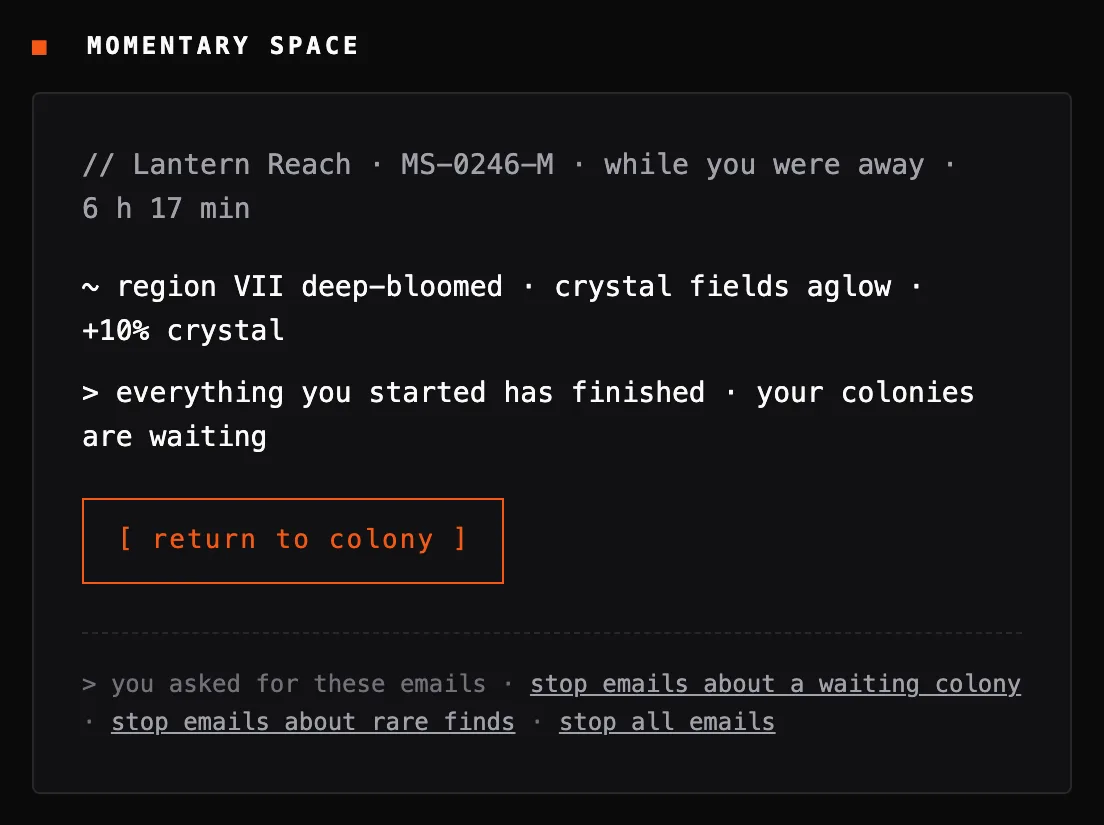
The crew's letters wear the same dark card. The hello letter is the only one written as prose.
// when the colony writes
The colony never writes in a hurry:
- Nothing is sent while you have the colony open, or within ten minutes of your last visit.
- Nothing is sent between 22:00 and 08:00 in your time zone, which your browser tells the game when you visit.
- At most one email goes out every six hours, so a busy night arrives as one letter in the morning.
- A colony left idle with nothing finished never writes that it is waiting, and it writes it once per absence.
- A colony with a standing order switched on is never waiting, since the crew keeps its vehicles busy (see Standing orders).
// notifications on a device
A browser that can take notifications can hear from the colony too, with or without an email address. The settings show this part only in a browser that supports it, and on an iPhone or iPad only once the game is installed to the home screen (see Installing the app).
- Open
[ account ], press[ all settings ]and, underNotifications on this device, press[ turn on ]. - Allow notifications when the browser asks.
- Tick what the colony may tell you about, as for emails, and press
[ save ].
The first device you turn on starts with a waiting colony and levels ticked. Your choice applies to every device you have turned on, and is kept apart from your email choices. A device that takes a notification is the one place you hear it: the email then carries only what no device took.
[ turn off ] forgets the device you're on. Signing out of a browser forgets its notifications too. If the browser has blocked notifications for the site, the settings say so, and you can allow them again in the browser's settings.
// stop emails
Every email ends with links such as stop emails about levels and stop all emails. A link opens a page that unsubscribes you at once, without signing in, and offers [ subscribe again ] in case you change your mind. Your mail app's own unsubscribe button stops everything.
You can also untick a kind in the settings and press [ save ]. The newsletter has its own unsubscribe link inside each issue.